Connect Discord to Your Ayo Page
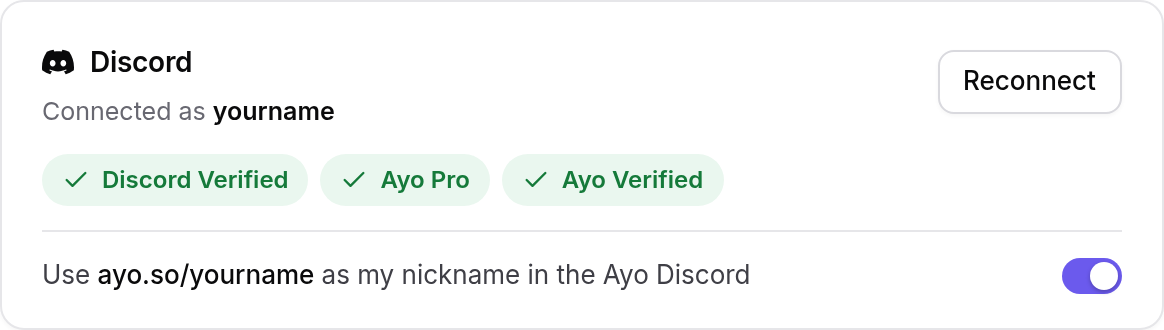
Connecting Discord does three things:
- It puts your Discord on your page, and keeps it yours. Once you've connected, nobody else can show your Discord name on their page.
- It adds you to the ADYNATO Discord, our studio's home server, if you aren't in it yet. Ayo is one of the products there that you can opt into.
- It gives you roles there. Everyone who connects gets Discord Verified. Pro members also get Ayo Pro, which opens the #supporter channel.
Connecting is free on every plan.
Connect your Discord
- Open the Dashboard → Settings → Connections and find the Discord card. Press Connect Discord.

- Discord asks you to let Ayo see your username and join servers for you. Check that it's your account, then press Authorize. Ayo only uses this to read your Discord name and add you to the ADYNATO Discord.
- Discord sends you back to Ayo, which shows Connected Discord as your name. Press Back to Settings. The Discord card now shows your name and your roles.
Roles in the ADYNATO Discord
- Discord Verified: everyone who connects Discord.
- Ayo Pro: Pro members. Opens the #supporter channel.
- Ayo Verified: Pro members whose page has the verified badge, after an approved verification request.
In Settings → Connections, a tick means you have the role and a lock means you don't yet. Ayo keeps the roles up to date for you:
- When you go Pro, you get Ayo Pro straight away.
- If Pro ends, Ayo Pro and Ayo Verified are removed. Discord Verified stays, and so does your connection.
Your nickname in the ADYNATO Discord
Pro members show up in the ADYNATO Discord as ayo.so/yourname, so other members can find your page. It follows you when you change your Ayo username.
The nickname is on by default. To turn it off, use the switch under your roles in the Discord card:
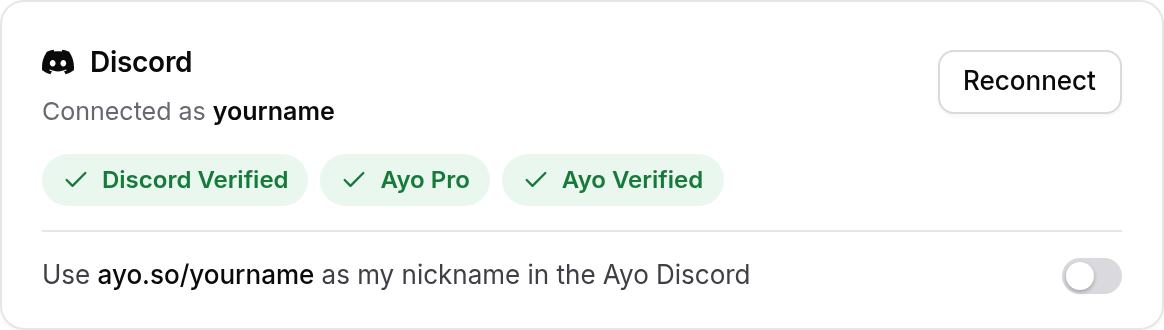
When it's off, your normal Discord name shows instead. Ayo can't set any other nickname for you.
Switch accounts or refresh your name
Changed your Discord username, or want a different account? Press Reconnect in the Discord card and sign in with the account you want. Your nickname setting is kept.
If something goes wrong
- "Discord sign-in didn't go through." The sign-in timed out or was cancelled. Press Connect Discord (or Reconnect) and try again.
- "Your Discord is connected, but we couldn't set up your roles." Your account is connected, but we couldn't add you to the server or give you your roles. Join the ADYNATO Discord with the invite link on that page, then connect again.
Still stuck? Ask in the ADYNATO Discord or visit the help center.